
Browser Importer
Import chapters from comic websites with one click, or translate pages right on the website.
1. What It Does
The XianScan browser extension connects your browser to your XianScan server:
- Import: finds the comic pages on the website you are reading (including lazy-loaded and infinite-scroll readers), lets you pick them, and sends them to a book in your library. It guesses the chapter number from the page title or URL.
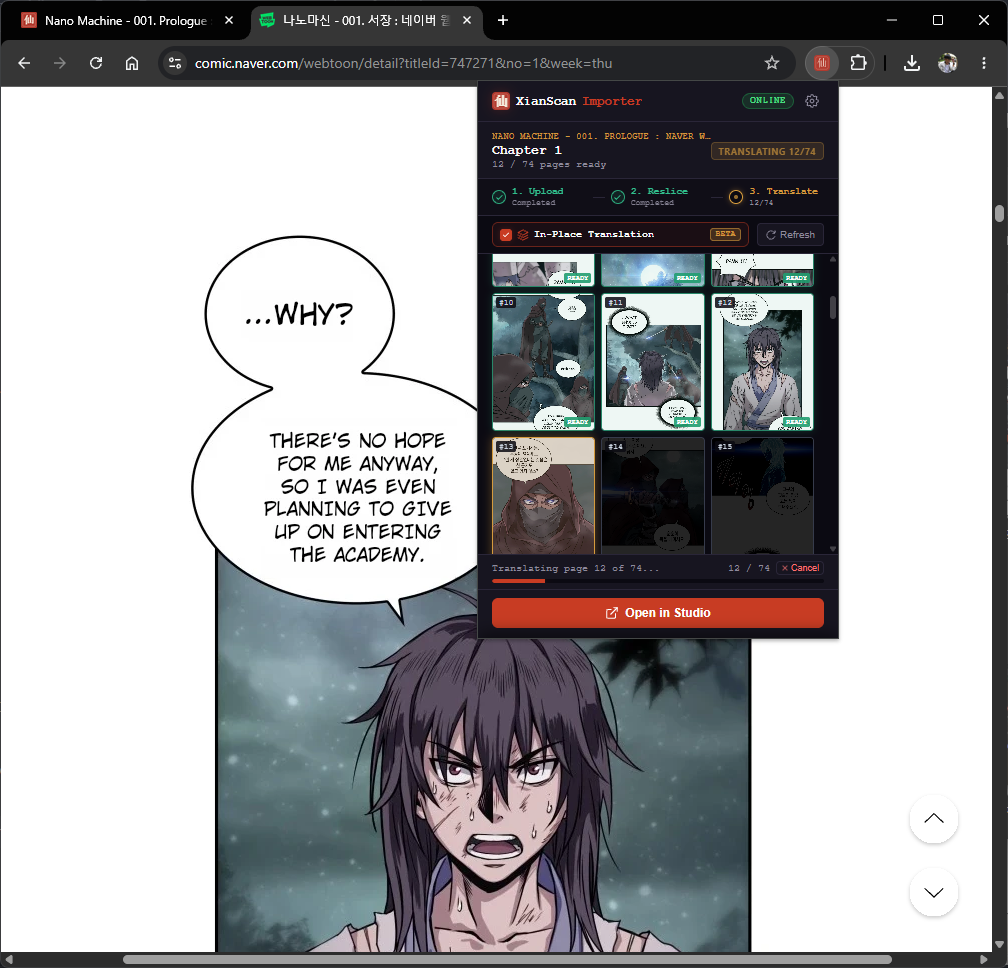
- In-Place Translation (beta): replaces the pages on the website with translated versions as they finish.
- It skips ads and banners, and if a site blocks direct downloads it fetches the images from inside the open tab instead.

2. Install
Download the extension from the same GitHub Release as XianScan. The extension has its own version number, so the file names contain a different version than the app.
Chrome, Edge, Brave, Opera
- Download
xianscan-importer-v<version>.zipand extract it to a folder you will keep. - Open
chrome://extensions(oredge://extensions,brave://extensions). - Turn on Developer mode (top right).
- Click Load unpacked and select the extracted folder.
Firefox
The Firefox package (xianscan-importer-firefox-v<version>.xpi) is not signed by Mozilla, so regular Firefox will not install it permanently.
- Firefox (regular release): open
about:debugging#/runtime/this-firefox, click Load Temporary Add-on... and pick the.xpi. It stays until you restart Firefox. - Firefox Developer Edition, Nightly or ESR: set
xpinstall.signatures.requiredtofalseinabout:config, then drag the.xpiinto Firefox to install it permanently.
Firefox 109 or newer is required.
3. Connect It to XianScan
- Click the XianScan extension icon, then the gear icon to open Connection Settings.
- XianScan Server Endpoint: keep
http://127.0.0.1:8124if XianScan runs on this computer. For another computer, enter the address shown in its Settings -> Network & Access (LAN access must be on there). - Access token: copy it from XianScan Settings -> Network & Access. The extension needs it even on the same computer. It is stored in the extension and never shared with websites.
- Click Save & Connect. If you see "Token rejected", copy the token again; it may have been regenerated.
4. Import or Translate a Chapter
- Open a chapter on a comic website and scroll through it once, so lazy-loaded images appear.
- Click the XianScan extension icon. It lists the pages it found.
- Pick the Target Book and Target Chapter (or create new ones from the same list), and set the two options:
- Auto-Reslice: re-slice webtoon strips so no speech bubble is cut in half.
- Auto-Translate: start translating right after the upload.
- Click Import Selected Pages (the button shows how many pages are selected).
To read the translation on the website itself, turn on In-Place Translation. It uploads and translates the pages, then swaps them in as each one finishes. While it is on, Auto-Translate is always on.
(For building the extension from source, see Extension & Client Architecture.)