
Quick Start
Download XianScan, connect a translation model, and translate your first chapter.
1. Download
Get the archive for your system from GitHub Releases. The detection, OCR and cleaning models are built in, so nothing else is downloaded when you first start it.
| System | Download | GPU acceleration |
|---|---|---|
| Windows 10 / 11 (64-bit) | xianscan-windows-x86_64.zip | DirectML on a dedicated NVIDIA, AMD or Intel Arc GPU |
| Linux (x86_64) | xianscan-linux-x86_64.tar.gz | NVIDIA CUDA 13 (driver and libraries installed separately, see GPU Acceleration) |
| macOS (Apple Silicon) | xianscan-macos-arm64.tar.gz | CoreML |
| Docker (Linux x86_64) | ghcr.io/arbenapura/xianscan:latest | CPU only |
Without a supported GPU, everything runs on the CPU. It works, just more slowly.
Extract the whole archive into its own folder and keep the files together. The Windows ZIP includes DirectML.dll and the Linux archive includes the ONNX Runtime GPU libraries; they must stay next to the program.
To check a download, compare it with SHA256SUMS.txt from the same release: sha256sum -c SHA256SUMS.txt --ignore-missing on Linux and macOS, or Get-FileHash xianscan-windows-x86_64.zip in PowerShell.
2. Start XianScan
Windows
Double-click xianscan.exe. A console window opens and shows the startup log. If Windows SmartScreen warns you, click More info -> Run anyway.
macOS
The binary is not signed by Apple, so remove the download quarantine once, then start it from Terminal:
cd ~/Downloads/xianscan    # the folder you extracted
xattr -dr com.apple.quarantine .
./xianscan
Linux
chmod +x xianscan
./xianscan
Docker
docker run -d --name xianscan \
  -p 8124:8124 \
  -v xianscan-config:/config \
  --restart unless-stopped \
  ghcr.io/arbenapura/xianscan:latest
In Docker every browser needs the access token once, even on the same computer. Print it with docker exec xianscan /app/xianscan --print-token. More in Remote Server & Docker.
The first start takes a little longer while XianScan unpacks its web app. When it is ready, the console shows a banner with the address:
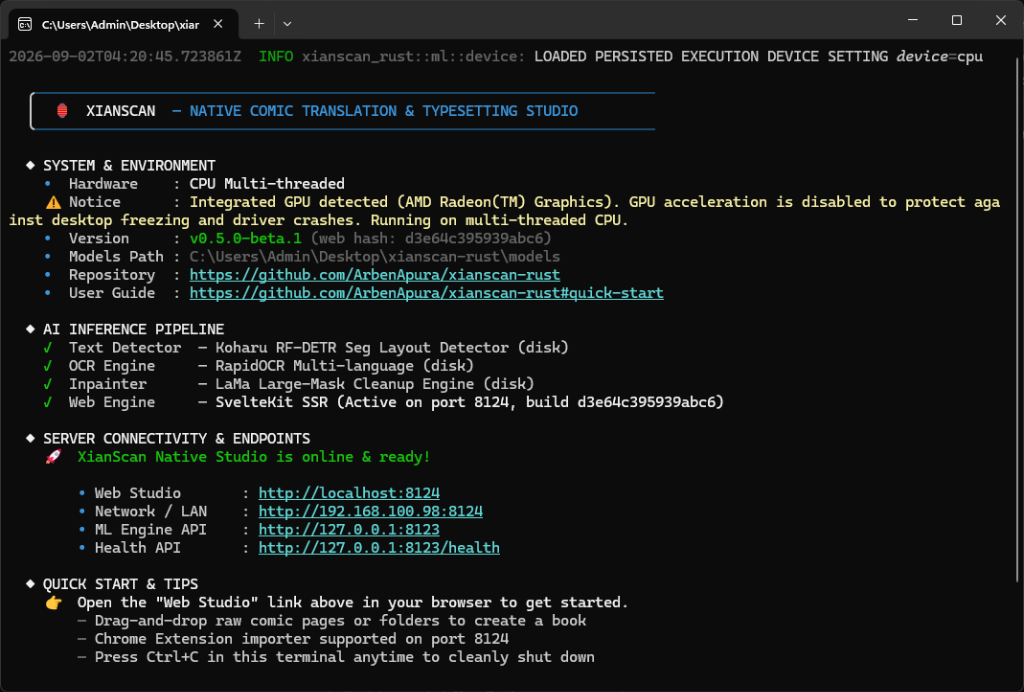
Open http://localhost:8124 in your browser. Keep the console window open while you use XianScan; closing it stops the server.
3. Connect a Translation Model
XianScan reads and cleans pages on your computer, but the translation itself comes from a large language model (LLM). Pick one of these before you translate:
Option A: free and local, with Ollama (the default). XianScan is preconfigured for Ollama with the qwen3.5:9b model. Install Ollama, then download the model:
ollama pull qwen3.5:9bThat is all; XianScan finds Ollama at http://localhost:11434/v1. A GPU with 8 GB or more of memory is recommended for this model. For smaller GPUs, see Translation Providers.
Option B: a cloud API (DeepSeek, Google AI Studio, OpenAI, Groq, OpenRouter). Faster on computers without a strong GPU, and usually cheap.
- Click Settings (the gear icon) -> AI Translation Providers.
- Click Switch Provider and choose your provider.
- Paste your API Key, and pick a Model.
- Click Test Connection, then Save & Set Active.
4. Translate Your First Chapter
- In the Library, click New Book. Enter a title and choose the Source Language (the language of the scans) and the Target Language (the language you want).
- Open the book and click New Chapter, then Create & Open.
- Drag your page images (or a folder of them) into the chapter, or click Add Images. Pages are sorted by file name, so
2.jpgcomes before10.jpg. Supported formats are PNG, JPEG, WebP, AVIF and HEIC, up to 32 MB per file. - Click Translate All. A progress widget appears; you can drag it anywhere or minimize it. Pages update one by one as they finish.
- Read the result in the Webtoon view, or download it with Export ZIP.
Shortcut: drag a folder onto the Library (or click Import Folder) to create a book in one step. A folder that contains chapter subfolders becomes one chapter per subfolder.
Next Steps
- Using the Studio: view modes, fixing a page, re-slicing webtoons and exporting.
- Other Devices & Access Token: read on your phone or another PC.
- Browser Importer and Mihon: import from comic sites and read on Android.
- Troubleshooting if something does not work.