
Other Devices & Access Token
Use XianScan from a phone, tablet or another computer, and how the access token protects it.
1. How Access Works
By default XianScan only accepts connections from the computer it runs on, and a browser on that computer needs no password.
Everything else needs the access token, a long random key that XianScan creates on first start:
- phones, tablets and other computers on your network,
- the Browser Importer, even on the same computer,
- the Mihon extension,
- anything that reaches XianScan through a tunnel or reverse proxy,
- every browser when XianScan runs in Docker.
A browser asks for the token once on an unlock page and then remembers it. Apps send it with each request.
2. Turn On LAN Access
- Open Settings -> Network & Access and turn on LAN access.
- Restart XianScan (close the console window and start it again).
- On the other device, open one of the network addresses listed in the same section, for example
http://192.168.1.20:8124. - Paste the access token on the unlock page.
The same addresses are printed in the startup banner under Network / LAN:
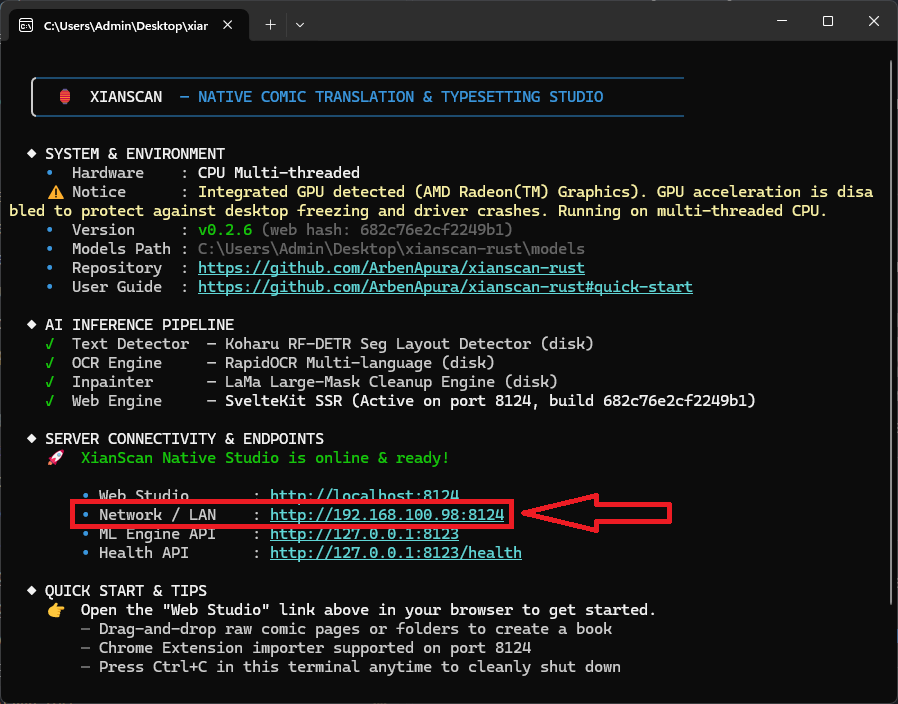
You can also start XianScan with xianscan --lan, or set XIANSCAN_BIND=lan. When the flag or variable is used, the switch in Settings is locked. Docker always uses LAN mode.
If your firewall asks whether to allow XianScan, allow it on private networks. Only port 8124 needs to be reachable; never open port 8123 (it is internal).
3. The Access Token
- Copy it from Settings -> Network & Access, or print it with
xianscan --print-token(in Docker:docker exec xianscan /app/xianscan --print-token). - Replace it with Regenerate in the same section if it leaked. Every paired device, the browser extension and Mihon then need the new token.
- Where it is stored: a file named
access-tokenin the XianScan data folder (see Your Data & Updates).
If you upgraded from a version before access control, with an existing library, LAN access stays on so your devices keep working, but they now need the token.
4. Access From the Internet
Do not forward port 8124 on your router. To reach XianScan from outside your home, use a tunnel with a login in front of it, as described in Remote Server & Docker.
If you put a reverse proxy on the same machine, make sure it passes the original Host header or adds X-Forwarded-For, so its requests are not mistaken for local ones. To remove the local exception completely, set XIANSCAN_TRUST_LOOPBACK=0; then every request needs the token.